Let’s be honest. A lot of student laptops are designed to look attractive under shop lighting, not to survive three years of being opened in classrooms, carried in backpacks and used for assignments at midnight. The thin bezel and shiny screen look great on day one. The loose hinge, cracked screen or failing keyboard is what we see later. A student needs a laptop that does ordinary work quickly, lasts through the day and can be repaired at a sensible cost.
That is why our first recommendation this year is less glamorous than last year’s list. We have refurbished business laptops in stock at Fix My Laptop now. For many students, one of those is a better use of the budget than a cheap new consumer laptop, or a premium one bought mainly for its looks.
What Actually Matters To a Student?
Speed matters, but only up to a point. Writing an essay, keeping research tabs open, joining a video call and working in Microsoft 365 do not require the fastest processor on the shelf. They do require enough memory and a decent solid-state drive. Aim for 16 GB of RAM and a 512 GB SSD if the laptop needs to last several years. A 256 GB SSD can still work for basic school use when most files are kept online, but it leaves less room for photos, software and offline work. For design, video, virtual machines or engineering software, check the course requirements before deciding that the standard configuration is enough.
Battery life is just as important as speed. Advertised battery figures are usually measured under controlled conditions, not a real school day with a bright screen, video calls and twenty browser tabs. On a refurbished laptop, the model’s original battery claim tells you even less about the particular machine in front of you. Ask about its present battery condition and think about whether the student can charge during the day. A replaceable, readily available battery can be more useful than an impressive number printed on the original box.
Screen quality also affects every hour of use. A readable 13″ or 14″ display with reasonable brightness is more valuable than a huge resolution number that looks good on a price tag. Many students work near windows, under harsh classroom lights or outside. Check the screen at a comfortable brightness, not just at maximum in a dim store. Then try the keyboard and touchpad. A solid keyboard matters when you are typing essays every week, and a responsive touchpad with gestures is more useful for most students than a touchscreen they will rarely touch.
Weight and ports sound boring until you live with the laptop. A heavy gaming machine plus its large power brick is an unpleasant companion on public transport. At the other extreme, an ultra-thin laptop may leave you carrying a collection of dongles to connect a projector, USB drive or monitor. Look at the weight of the whole setup and the connections you actually use. HDMI and USB-A are still handy in schools and homes, even if they are not fashionable in product photos.
Why a Refurbished Business Laptop is Our First Pick
Look for models such as the Lenovo ThinkPad T14, Dell Latitude 7000 series and HP EliteBook 800 series. These are the sort of laptops companies buy for staff who open and close them all day, type on them for hours and expect them to keep working. They tend to have sensible keyboards, practical ports and sturdier construction than many new machines at the same price. Their designs are also less likely to make a routine repair unnecessarily difficult.
A business laptop is not indestructible, and a familiar model name does not guarantee that every generation is equally good. But it is a useful starting point. A well-kept ThinkPad or Latitude with enough RAM can feel far better to use than a new bargain laptop with a slow processor, flimsy case and poor screen. You may give up the edge-to-edge OLED display and the unboxing experience. You gain a machine selected for work, which is exactly what school and university ask it to do.
The word “refurbished” is doing a lot of work here. One unit might have a healthy battery, clean screen and tight hinges. Another with the same model number might have spent years being knocked around, with a worn keyboard and a charger that barely stays connected. Ask what has been tested, whether Windows 11 is properly supported, what warranty comes with the actual laptop and what happens if something goes wrong. We can show you the condition of the machines we have in stock rather than asking you to gamble on a listing photo.
Also check the exact configuration before assuming you can upgrade it later. Storage is replaceable in many business laptops, but not every model has a spare slot, and RAM may be soldered even in a ThinkPad or EliteBook. We can check those details for the specific unit. It is much easier to buy enough memory now than to discover at exam time that an 8 GB machine cannot be upgraded.
If You Want a New Mac: MacBook Neo
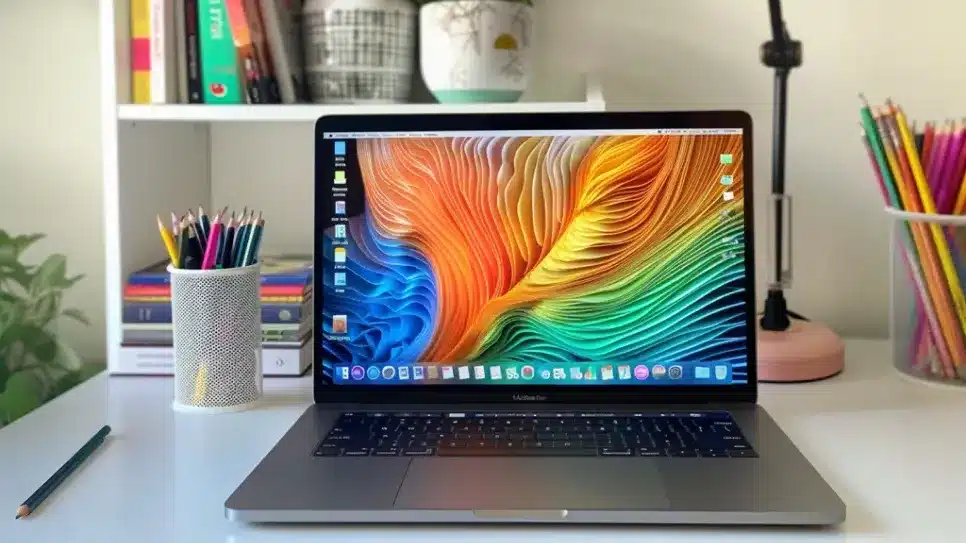
The MacBook Neo is now our first pick among new Macs for ordinary school and university work. It has a 13-inch, 500-nit display, an aluminium case, a proper keyboard and touchpad, and a fanless A18 Pro chip. It is compact enough for a backpack and starts with 256 GB of storage. Apple launched it from A$899 at the education price for eligible buyers, so it sits in a different price bracket from the MacBook Air.
Yes, it has only 8 GB of unified memory. We would normally push a Windows buyer towards 16 GB, but we would not reject the Neo on that number alone. The combination of Apple silicon and macOS should handle documents, research, email, streaming and video calls comfortably for most students. If the student routinely runs large creative projects, virtual machines or many demanding apps at once, the limit is real and cannot be upgraded. For that sort of work, the MacBook Air with 16 GB of memory is the step up. A discounted older Apple silicon Air with 16 GB can also be worth comparing against a new Neo.
There are trade-offs. The Neo has two USB-C ports, but only one supports faster USB 3 data and an external display; it supports one external monitor. You may need an adapter for HDMI or USB-A, and neither memory nor storage can be upgraded later. Before buying any Mac, read the school’s device list. If Windows is required, or a course depends on Windows-only engineering, architecture, IT or business software, choose a suitable Windows laptop. Do not assume a virtual machine or web version will solve that later. The Neo is an excellent fit for the student whose actual work fits macOS and its 8 GB limit.
If You Need a New Windows Laptop From a Store
The Dell 14 DC14250 at JB Hi-Fi makes more sense as our new Windows choice for a student who wants to buy from a shop. It is a conventional laptop, without a 360-degree touchscreen hinge that most students will never use. This particular configuration has a Core 5 120U processor, 16 GB of RAM, a 1 TB SSD and a 14-inch WUXGA screen. You also get HDMI, two USB-A ports and one USB-C port. JB Hi-Fi showed delivery and Click & Collect but confirm stock at your local store before setting off.
It is more than enough for essays, research, video calls and ordinary school software, which is what matters here. The JB Hi-Fi unit has one 16 GB memory module rather than soldered RAM, and Dell’s service manual documents replacing the memory, SSD, battery, fan and other parts. That is encouraging for maintenance, although the manual covers several chassis configurations and does not prove how strong the hinges are on this exact retail unit.
The weak point is the screen. It is rated at 300 nits and 45% NTSC colour coverage, so expect an ordinary display rather than rich colours or great visibility in bright sunlight. Inspect the keyboard, touchpad, hinge feel and screen in person because this is still a consumer Dell, not a Latitude. At the A$1,299 sale price shown, it is a sensible new Windows option, especially if you want the larger SSD and must have a brand-new device. At its A$1,849 regular price, we’d rather recommend looking elsewhere. A refurbished ThinkPad, Latitude or EliteBook will be cheaper and offer better-value machine for a student who carries it every day.
The Five-minute Check Before You Buy
First, get the school or course device requirements. Find out whether it requires Windows, macOS, or Chromebook. A Chromebook can work very well where the school explicitly supports it. We would not buy one for an unknown university course and hope every required program runs.
Next, set a budget for the whole machine, including a suitable charger, case or adapter if needed. Check 16 GB RAM, storage capacity, screen brightness, weight, keyboard and touchpad. For a refurbished unit, inspect the battery, hinges, keyboard, charging port, webcam, Wi-Fi and screen. Confirm that Windows 11 is supported and ask about the warranty. Do not choose by “i7,” “4K” or “AI PC” on a sticker while ignoring the parts you will use all day.
Finally, think about what happens if the laptop is dropped or starts misbehaving in the middle of a term. A repairable machine with available parts and someone local who can help is worth more than a spec sheet that wins a comparison chart. That is the part we consider every day at Fix My Laptop, because we see the laptops after the sales excitement has worn off.
If you are shopping during the holidays, bring us the student’s school requirements and your budget. We can show you the refurbished business laptops we have in stock, explain the condition of the actual unit and help you decide whether a refurbished Windows laptop, a new Dell or a MacBook Air makes the most sense.