We often meet customers who refuse to store anything in the cloud because they don’t trust it, yet keep every important photo, document and business file on a single laptop. They may feel safer because the files are physically inside the computer, but in reality, that is usually the much bigger risk. A laptop can be dropped, stolen, flooded, encrypted by ransomware or simply refuse to turn on one morning.
Your SSD Can Fail Without Warning
Modern solid-state drives are fast, quiet and generally reliable – but when they fail, they often fail suddenly. Unlike older mechanical hard drives, which sometimes gave advance warning through strange noises, slow performance or bad sectors, an SSD may work perfectly one day and become completely undetectable the next.
When that happens, there may be no simple repair and no software we can run to copy the files. SSD data recovery can require a specialist laboratory, sophisticated equipment and a great deal of manual work. It is expensive, and even after spending the money, there is absolutely no guarantee that your photos, documents or business records can be recovered.
The best part is that this is completely avoidable. Recovering lost data can cost many times more than maintaining a basic cloud subscription that costs less than a cup of coffee.
Cloud Storage Protects You From The Most Common Disasters
When your Desktop, Documents and Pictures folders are properly synchronised with OneDrive, your files are not trapped inside one computer. If the laptop dies or disappears, you can sign in on another device and retrieve them. When you replace the computer, your familiar folders can also be synchronised back automatically instead of having to reconstruct years of files from whatever USB drives you can find.
One common trap is the Downloads folder. OneDrive normally protects Desktop, Documents and Pictures – but not Downloads. Many people download an important attachment, invoice, form or family photo and then leave the only copy sitting in Downloads for years. If the computer fails, that file may disappear with it. Downloads should be treated as a temporary holding area: if something is important, move it into Documents, Pictures or another folder you know is being synchronised.
Cloud storage can also help with accidental deletion, unwanted changes and some ransomware incidents through file history and recovery features. It isn’t magic, and it shouldn’t be your only backup if the data is irreplaceable, but it gives ordinary home users a dramatically better chance of recovering from a failed computer.
This is why we recommend that almost everyone at least consider Microsoft 365 Basic. It only costs $3 per month and includes 100GB of OneDrive storage for one person, without requiring you to pay for the full Microsoft 365 subscription ($150+ per year) with the desktop versions of Word, Excel and the other Office programs. For most people, 100GB is enough to synchronise their important documents, desktop files and a sensible collection of photos.
Microsoft provides only 5GB with a free account, which fills up very quickly and often leaves people believing their files are protected when synchronisation has actually stopped. The 100GB Basic plan is a relatively inexpensive middle ground for someone who wants their important files protected but doesn’t need the complete Office package.
If you have a very large photo or video collection, 100GB may not be enough, and a larger Microsoft 365, Google One or iCloud plan may make more sense. The important thing isn’t which major provider you choose. The important thing is that your only copy isn’t sitting on the same SSD that could fail tomorrow morning.
Is Someone Going To Hack The Cloud?
No online service is completely immune from breaches, outages or human mistakes. Microsoft, Google and Apple employ large security teams and build multiple layers of protection into their services, but nobody can honestly promise that any system will remain perfect forever.
For the average person, however, the more likely weakness is not a hacker breaking into Microsoft’s servers. It is reusing the same password on several websites, approving a fake login notification, ignoring account-security warnings or losing access to an old phone number used for recovery.
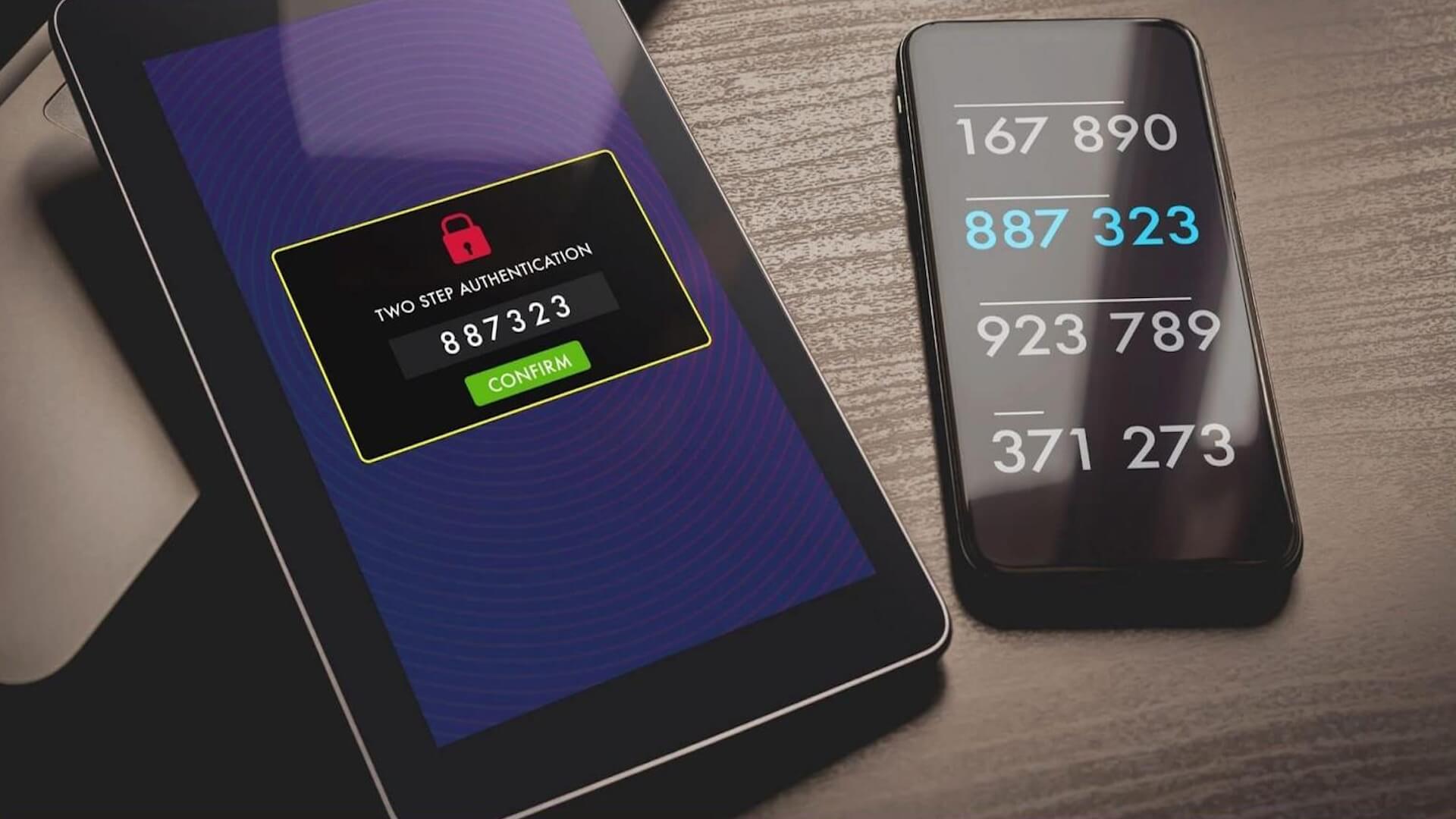
Use a unique password for your Microsoft or Google account, store it in a reputable password manager and enable two-factor authentication or a passkey. Make sure the recovery phone number and email address are current. If you receive a login prompt you didn’t initiate, reject it – don’t approve it just to make the notification disappear.
With these precautions, a properly secured cloud account is generally a far safer home for your important files than a single laptop with no backup.
Synchronisation Is Helpful, But it Isn’t a Complete Backup
There is an important distinction between cloud synchronisation and a proper backup. Synchronisation keeps the same files available across multiple devices, but it can also synchronise mistakes. If you deliberately delete a file, the deletion may be reflected in the cloud. If ransomware changes your files, those changes may also be uploaded.
Services such as OneDrive provide a recycle bin, version history and recovery options, which can save you in many situations. However, particularly important data should still have another independent copy – perhaps on an external drive that is disconnected when not in use, or through a dedicated backup service.
A good rule remains: if a file exists in only one place, it is not backed up. If it exists on your laptop and is synchronised to OneDrive, you have useful protection. If it also exists in an independent backup, you are in much better shape.
The Cloud Isn’t The Dangerous Part
The cloud is a tool. Used carelessly, it can create problems; used properly, it protects you from far more common ones. Refusing all cloud storage does not make your data safer if the alternative is keeping the only copy on one ageing computer.
At Fix My Laptop, we regularly see the consequences of failed drives, stolen laptops, accidental deletions and computers that no longer start. Don’t wait for the SSD to fail before deciding that your files were important. At minimum, sign up for enough cloud storage to synchronise the things you cannot afford to lose, secure the account properly and check occasionally that synchronisation is actually working.
If you’re unsure whether OneDrive is protecting the right folders – or whether it is working at all – we can check the setup, fix synchronisation problems and help you put a sensible backup system in place.