What the Extension Actually Gives You
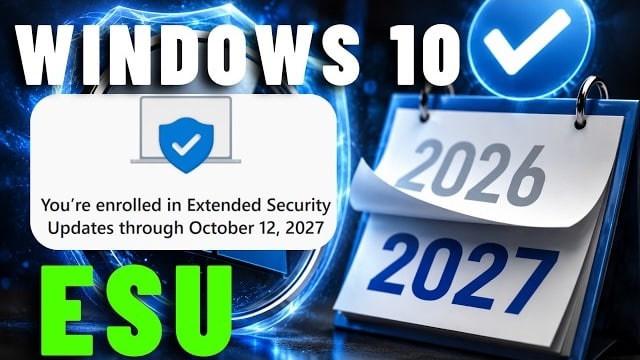
ESU allows an eligible Windows 10 computer to continue receiving critical and important security updates. It does not turn Windows 10 back into a fully supported operating system. You will not receive new features, general technical support or most non-security improvements. It is essentially a temporary safety net for people who need more time before moving to Windows 11 or replacing their computer.
That distinction matters. Your Windows 10 PC may still work perfectly well, but without ESU, newly discovered Windows vulnerabilities may remain permanently unpatched. Antivirus software is useful, but it cannot repair security holes inside Windows itself. The extension applies to eligible personal computers running Windows 10 version 22H2. Computers managed by a business, domain or corporate device-management system require the separate commercial ESU program.
How to Enroll
On an eligible Windows 10 computer, open:
Settings → Update & Security → Windows Update
You should see an option to enrol in Extended Security Updates. A Microsoft account is required, even if you normally sign into the computer using a local account. If you are already enrolled, Microsoft says your coverage will automatically continue until October 2027. There should be nothing further to purchase or activate, although checking Windows Update is still sensible.
More Time Does Not Mean Forever
This extension is welcome news for anyone whose computer still performs well but cannot officially upgrade to Windows 11. Many otherwise functional PCs are excluded because of Microsoft’s processor, TPM 2.0 and Secure Boot requirements. Replacing a usable computer purely because it has been declared insufficiently modern is not always the best financial or environmental decision.
However, the additional year should be treated as planning time rather than permission to forget about the problem until October 2027. An older computer may benefit from a proper tune-up, removal of unnecessary startup software, installation of updates, internal cleaning or an upgrade from a mechanical hard drive to a solid-state drive. Additional memory can also improve performance on supported systems, although the right upgrade depends on the computer and how it is being used. Most importantly, make sure your files are properly backed up. An aging hard drive can fail without warning, and security updates do nothing to protect documents and photos from hardware failure, accidental deletion or ransomware.
Need Help Keeping Your Windows 10 PC Going?
Fix My Laptop can help you:
- Check whether your computer qualifies for Windows 10 ESU and complete the enrolment.
- Assess whether it can safely and reliably upgrade to Windows 11.
- Tune up a slow or cluttered Windows installation.
- Upgrade storage or memory where the improvement is worthwhile.
- Set up and test backups before something fails.
You may not need a new computer yet. You do, however, need a plan that extends beyond hoping the old one survives another year.