BitLocker is Windows’ drive encryption technology. It protects your files if somebody steals your computer or removes the drive and connects it to another machine. That’s useful protection, particularly on a laptop that travels with you. Normally, your computer unlocks the drive automatically during startup, so you might never notice it. However, certain hardware changes, firmware updates and repairs can interrupt that process and trigger a request for the recovery key. Moving the drive into another computer can do the same.
You might be thinking, “I never turned that on.” You may not have needed to. On most computers running Windows 11, Device Encryption turns on automatically when you set up the computer using a Microsoft account or a work or school account. This uses BitLocker technology and is available on supported Windows Home computers too. Having a basic home laptop doesn’t mean your files are unencrypted.
The number you need is your BitLocker recovery key. It’s a 48-digit number, usually displayed in eight groups of six digits. It’s separate from your Windows password, your sign-in PIN and the shorter “key ID” shown on the recovery screen. The ID helps you identify the correct key; it won’t unlock the drive by itself. If the drive is locked and the recovery key is missing, Microsoft cannot recreate it for you. A repair shop cannot simply ask Microsoft to unlock your files either. And we can’t break that encryption either.
For a personal computer, check your Microsoft account. Go to Microsoft’s recovery-key page and sign in using the account associated with your computer. You can do this from your phone or another computer. If several keys appear, match the key ID against the one shown on the recovery screen. If nothing appears, check any other Microsoft accounts used during setup. A computer set up by a family member could have its key saved under their account.
For a business computer, check your work or school account. Visit the work-account recovery page, sign in with your work account, select Devices, expand the relevant computer and choose View BitLocker Keys. Access depends on your organisation’s settings, so you may need your IT administrator to retrieve it. Your personal Microsoft account and your Microsoft 365 work account are separate places to check, even if you use both on the same laptop.
You can also check directly while the computer still works. Open Start, type cmd, right-click Command Prompt and select Run as administrator. To check the encryption status of your main Windows drive, enter: manage-bde -status C:
Look at Conversion Status and Protection Status. These show whether the drive is encrypted and whether protection is active. To display its configured unlock methods, including an existing recovery password, enter: manage-bde -protectors -get C:
What if it says “Protection Off”? Check the Conversion Status too. If the drive is encrypted, protection may simply be suspended, which can be convenient during repairs or firmware updates. However, suspended protection leaves an unsecured unlocking key on the drive, so someone with physical access could read your files without knowing your Windows password. Your sign-in screen alone isn’t enough protection if the computer is stolen.
Once repairs are finished, make sure your recovery key is saved, then resume protection by running manage-bde -protectors -enable C: as administrator and check the status again after an hour or so. If Conversion Status says Fully Decrypted, encryption needs to be enabled first through Device Encryption or Manage BitLocker in Windows. If you’re unsure, we can help you check.
If Protection is on, type: manage-bde -protectors -get C:
Look for Numerical Password and copy the full 48-digit number beneath it, along with its ID. These commands check the existing configuration; they don’t turn encryption off.
Do this while Windows still starts and you can sign in. The command isn’t a way around a locked drive. Once the computer has failed and the drive is locked, opening a command prompt won’t magically reveal the missing recovery password. That’s why checking now matters much more than trying to work it out during a repair.
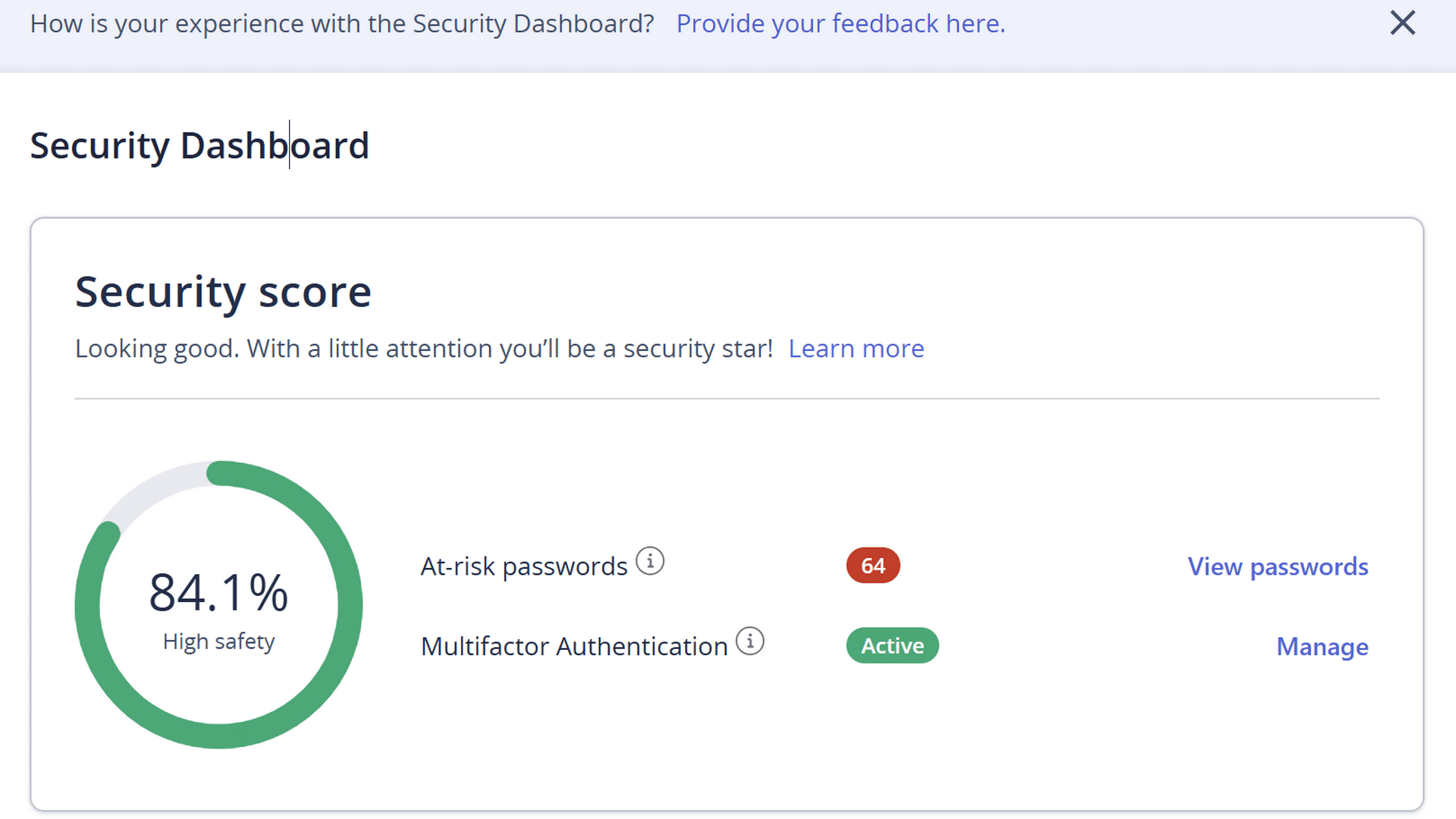
Keep a copy somewhere you can access without that computer. A secure password manager you can open from your phone, or a printed copy stored with your important documents, are practical options. Label it with the computer’s name and key ID so you know what it belongs to. Saving the only copy in a folder on the same laptop defeats the purpose. Treat the number like a sensitive password, because it can unlock the encrypted drive.
Finally, the recovery key and your backups do different jobs. The key can unlock an encrypted drive, but it cannot repair a physically failed SSD or bring back files that were never backed up. You need three things:
- Current full computer backup.
- A copy of your most important files stored in the cloud.
- And an accessible copy of your recovery key.
Take a few minutes to find yours this week. If you’re unsure whether encryption is enabled or whether you’ve saved the correct number, bring your laptop in and we can help you check. It’s a much easier conversation while everything is still working.